If you’ve forgotten your PIN, here’s how to change it:
To reset it in the Mobile Banking app:
Step 1
Select your Chequing Account.
Step 2
Tap the 3 dots in the top right corner of the screen, then tap ‘Manage Card’ and select ‘Change Card PIN’.
Step 3
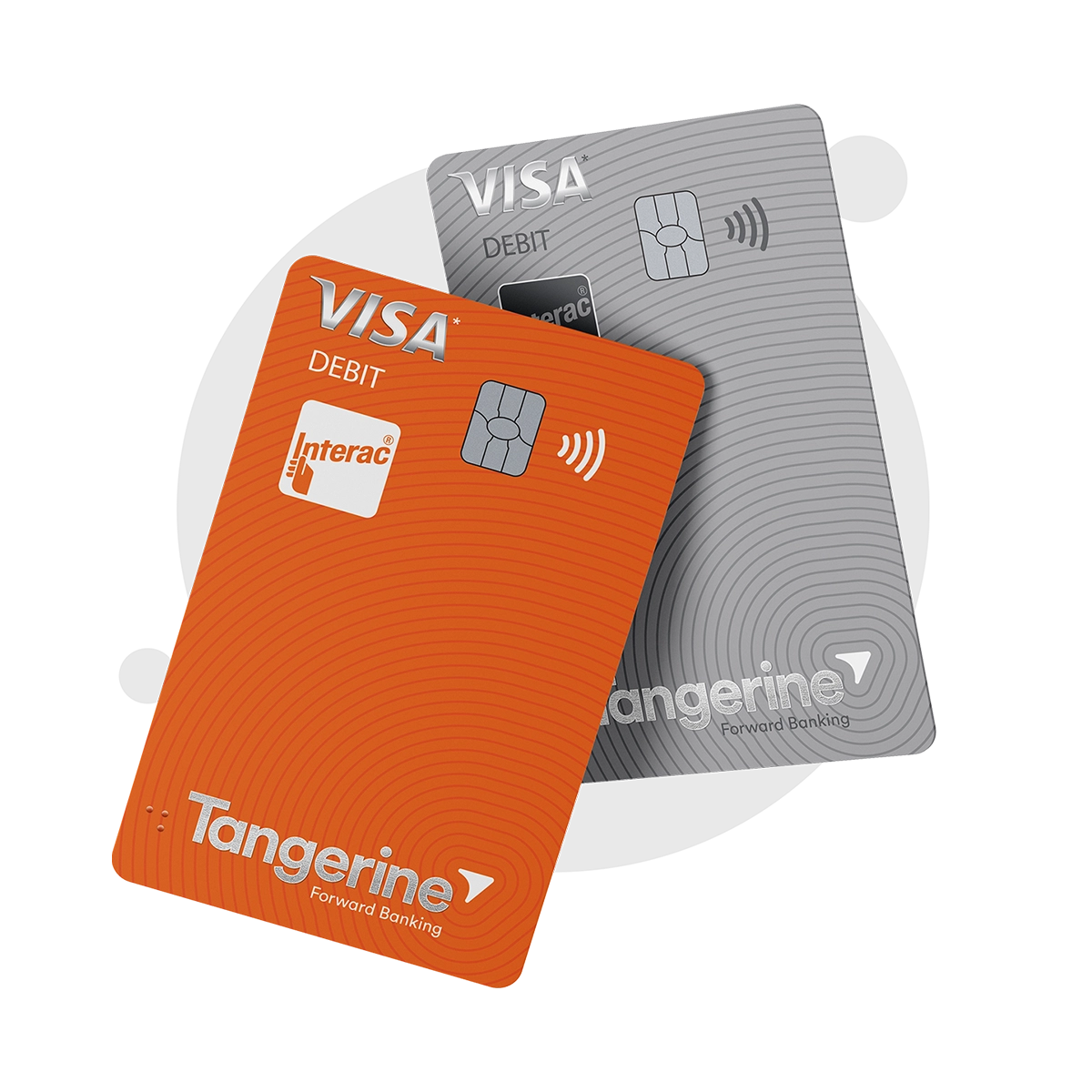
You’ll need the CVV on the back of your Card.
Step 4
Once you’ve created a new PIN, the next step is to activate it by making a withdrawal or deposit at any ABM. An email will be sent to you with instructions.
Note: You can use a Scotiabank ABM for free. A non-Scotiabank ABM will work, but you’ll be charged a fee for that transaction.
To reset it in the Web:
Step 1
Log in if you aren’t already and select your Chequing Account.
Step 2
Click ‘Manage Card’ and select ‘Change Card PIN’.
Step 3
You’ll need the CVV on the back of your Card, but you don’t have to remember your old PIN. Just follow the prompts.
Step 4
Once you’ve created a new PIN online, the next step is to activate it by making a withdrawal or deposit at any ABM. An email will be sent to you with instructions.
Note: You can use a Scotiabank ABM for free. A non-Scotiabank ABM will work, but you’ll be charged a fee for that transaction.
To reset it in the ABM:
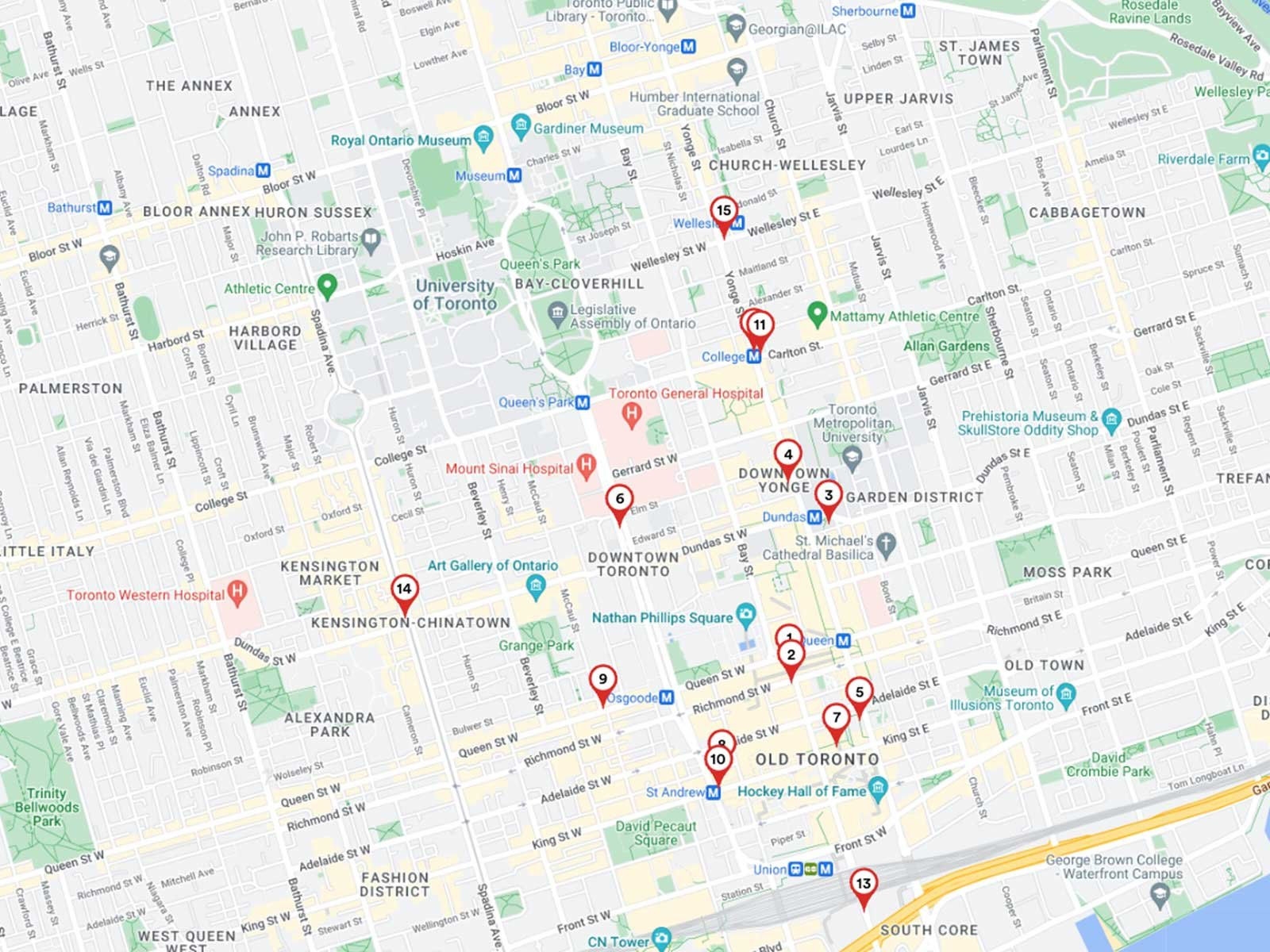
If you know your current PIN, you can change it anytime at a Scotiabank ABM that supports PIN changes. Check our ABM Locator to confirm that the ABM shows ‘PIN Change Supported’. Then follow these steps to complete your PIN change:
Step 1
Insert your Client Card and enter your current Client Card PIN, then select your language.
Step 2
Go to ‘Settings’ near the top right corner of the screen.
Step 3
Select the Change PIN option and follow the prompts.